Document Templating
Template Defaults
When creating a new document template the editor area is pre-populated with a basic starter template; this starter template is a common document layout that can be tweaked to a businesses requirements.
Example:
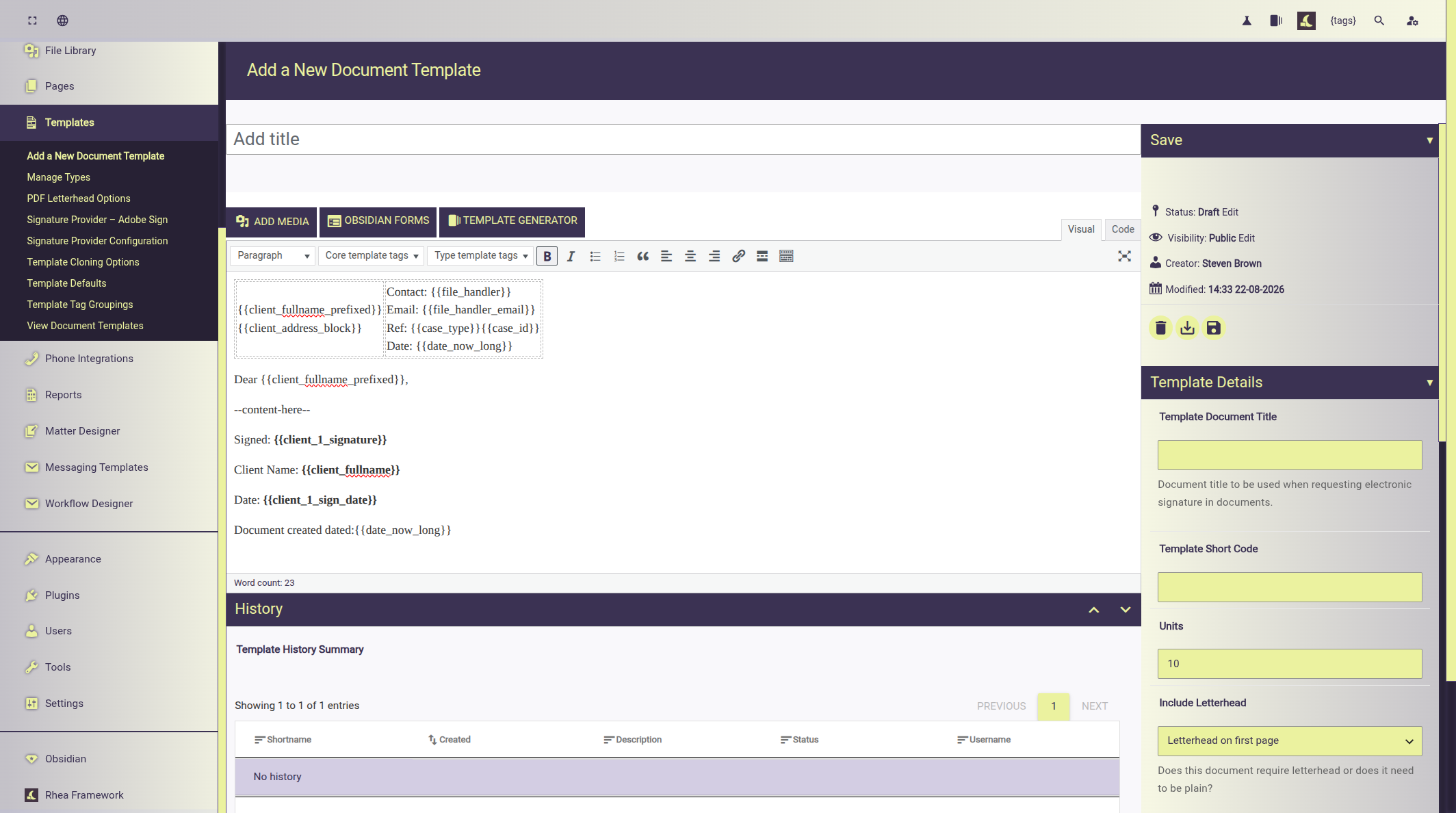
The starter template can be customised and automatically added to all new templates.
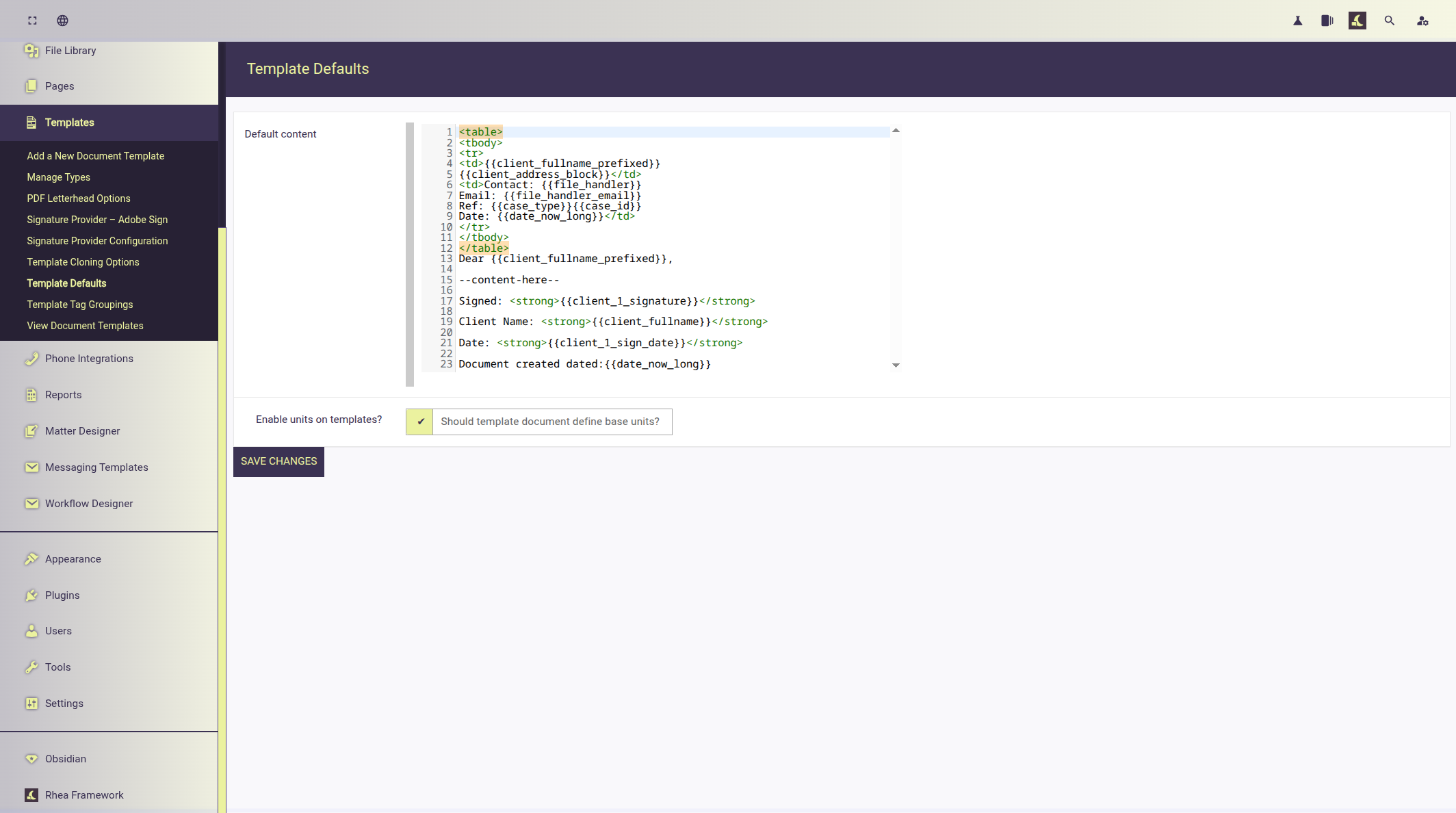
The markup for a template is written in HTML:
<table>
<tbody>
<tr>
<td>{{client_fullname_prefixed}}
{{client_address_block}}</td>
<td>Contact: {{file_handler}}
Email: {{file_handler_email}}
Ref: {{case_type}}{{case_id}}
Date: {{date_now_long}}</td>
</tr>
</tbody>
</table>
Dear {{client_fullname_prefixed}},

--content-here--

Signed: <strong>{{client_1_signature}}</strong>

Client Name: <strong>{{client_fullname}}</strong>

Date: <strong>{{client_1_sign_date}}</strong>

Document created dated:{{date_now_long}}
Template tags
Template documents use template tags; these tags are replaced with data when assigned to a enquiry or case.
System template tags
These template tags represent core details from the system or case they are always available. They include tags such as Business/Branch details, client details, third-party details, etc. almost every field under and enquiry/case is available as a template.
The editor allows template designers to select & insert from a list of available tags.
Preview a list of core template tags
View a list of Template Tags
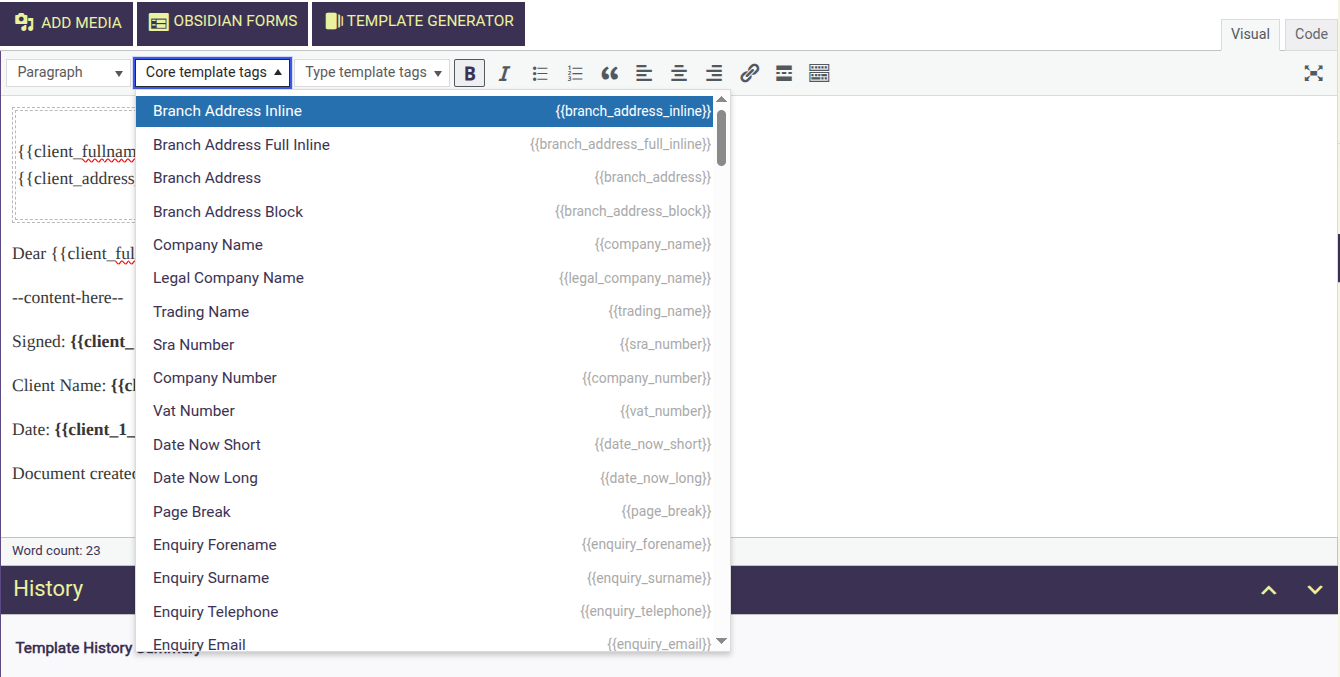
Dynamic template tags
Dynamic template tags are those derived from specific case types defined within the Enquiry Designer (i.e. questions that have an ID set).
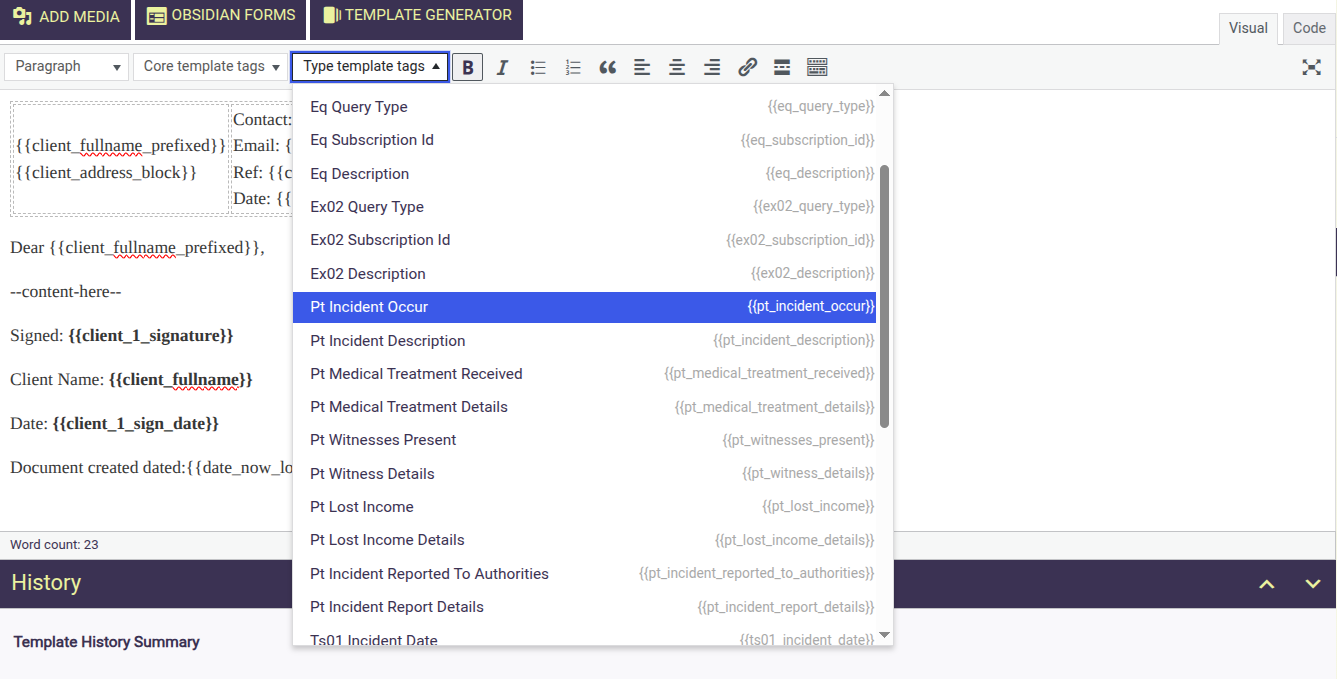
Interaction with the Enquiry Designer
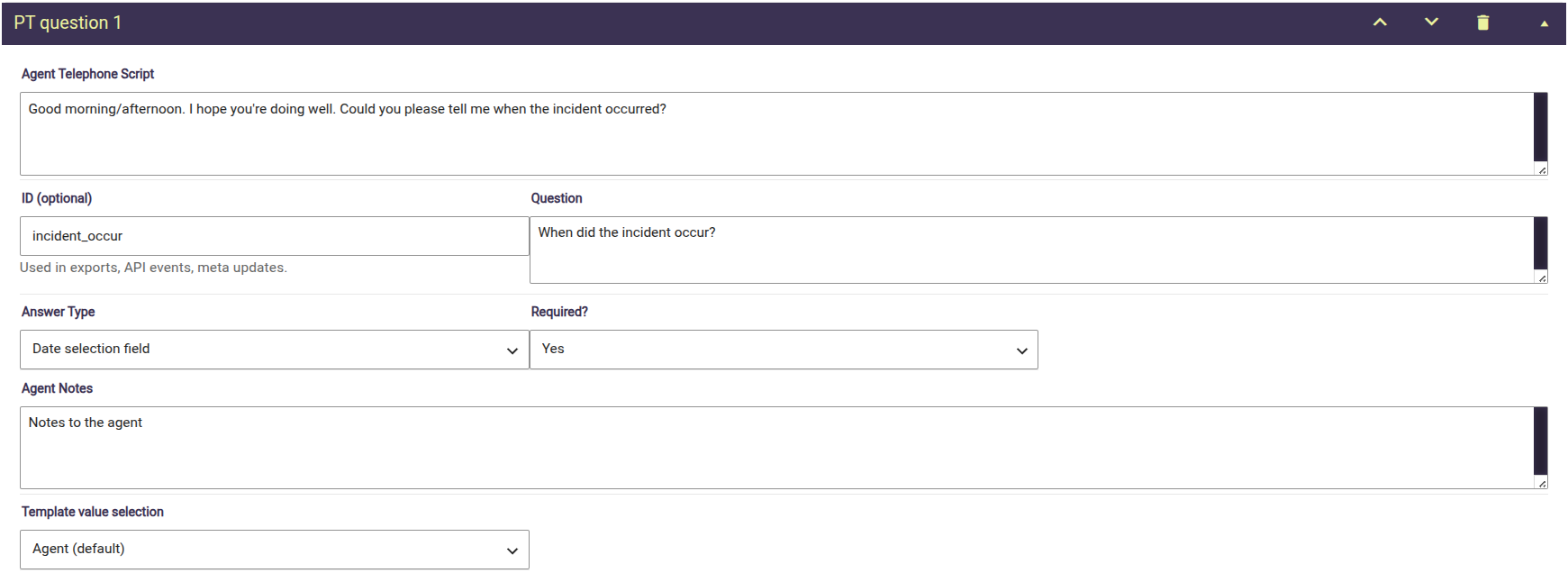
Dynamic template tags are derived from the Enquiry Designer, they follow this format <case_type>_<question_id> for example:
This image shows a entry from the enquiry designer; the id has been set to: "incident_occur" and the case type is PT (prototype) the resulting template tag would be {{pt_incident_occur}}
Tip
Any entry from the enquiry designer declaring an ID becomes and template tag.
Alternative template tag access
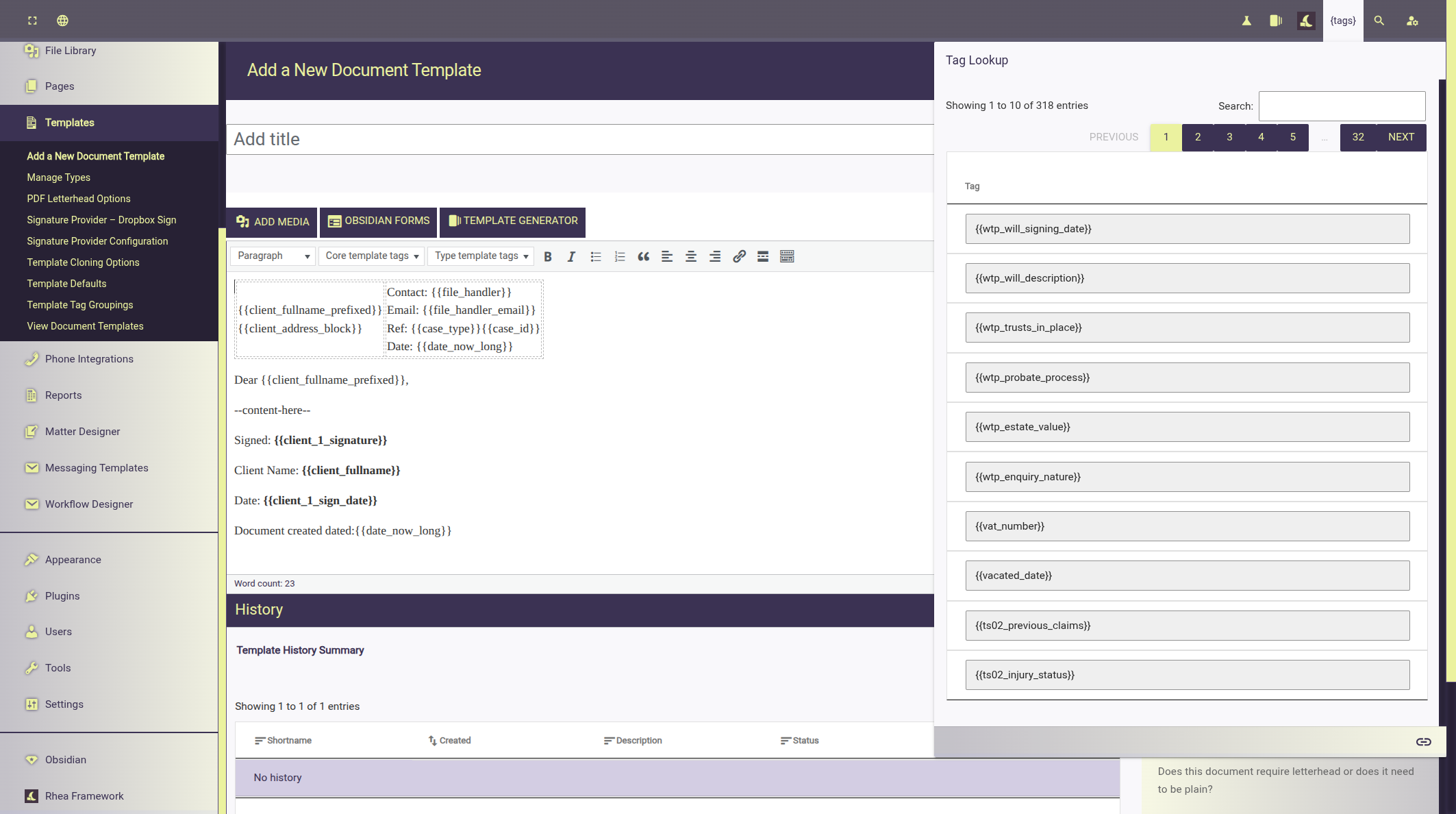
Template designers have access to a widget they can use to lookup and search all available tags.
 The widget is available on the admin toolbar (top right) when adding/editing template documents.
Once activate the widget allows designers to browse and search for template tags, clicking on any tag will copy it to the clipboard.
Document Meta Details
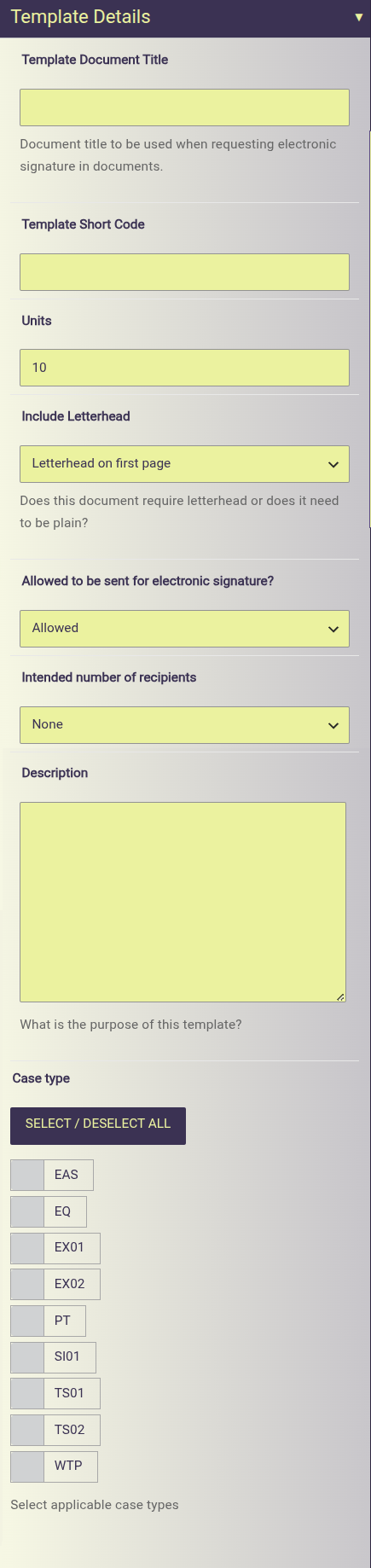
Document meta is used to categorise and set applicable case types amongst other details.
| Meta Detail | Description |
|---|---|
| Template Document Title | Document title to be used when requesting electronic signature in documents. |
| Template Short-code | The short-code reference representing the template, example: TD01 for Test Document 1 |
| Units | The starting unit cost value for the template document. |
| Include Letterhead | Should letterhead be embedded on the first page: - Letterhead on first page - Plain all pages |
| Allowed to be sent for electronic signature? | Should the document support electronic signatures? There maybe scenarios where document sent via post are required. See documentation: Electronic Signatures for more information. |
| Intended number of recipients | How many recipients is the document intended for? Intended for scenarios where conditional template tag logic is not being used. For example template designers may wish to write different documents aimed at specific number of recipients. |
| Description | (Optional) document description for reference. |
| Case type | Limit the document for use on one or many case types. |
Advanced Template Configurations
Conditional Template Tags
Luna also supports conditional template tag statements; conditional statements enable differing values to be populated based on the value of another tag.
The following example demonstrates changing the recipient based on whether the case is a child or not.
{monolith:ifelse} {if child_case == true} {{parent_name}} {if:else} {{claimant_name}} {/if} {/monolith:ifelse}
In actual template document use it may look like:
{monolith:ifelse}{if child_case == true}{{parent_name}}{if:else}{{claimant_name}}{/if}{/monolith:ifelse}
{{claimant-address}}

Dear {monolith:ifelse}{if child_case == true}{{parent_name}}{if:else}{{claimant_name}}{/if}{/monolith:ifelse},

You have been awared a medal for smashing your head in to a curb.

Yours faithfully,

{{fee_earner}}