Workflow and Task Management
Luna Workflows are separated by case type; they allow designers to define tasks or actions required to progress a file. They can serve as a both a method to progress a file and to train new users.
The screenshot above demonstrates a simple example Workflow. Each phase represents a task that the file handler must action.
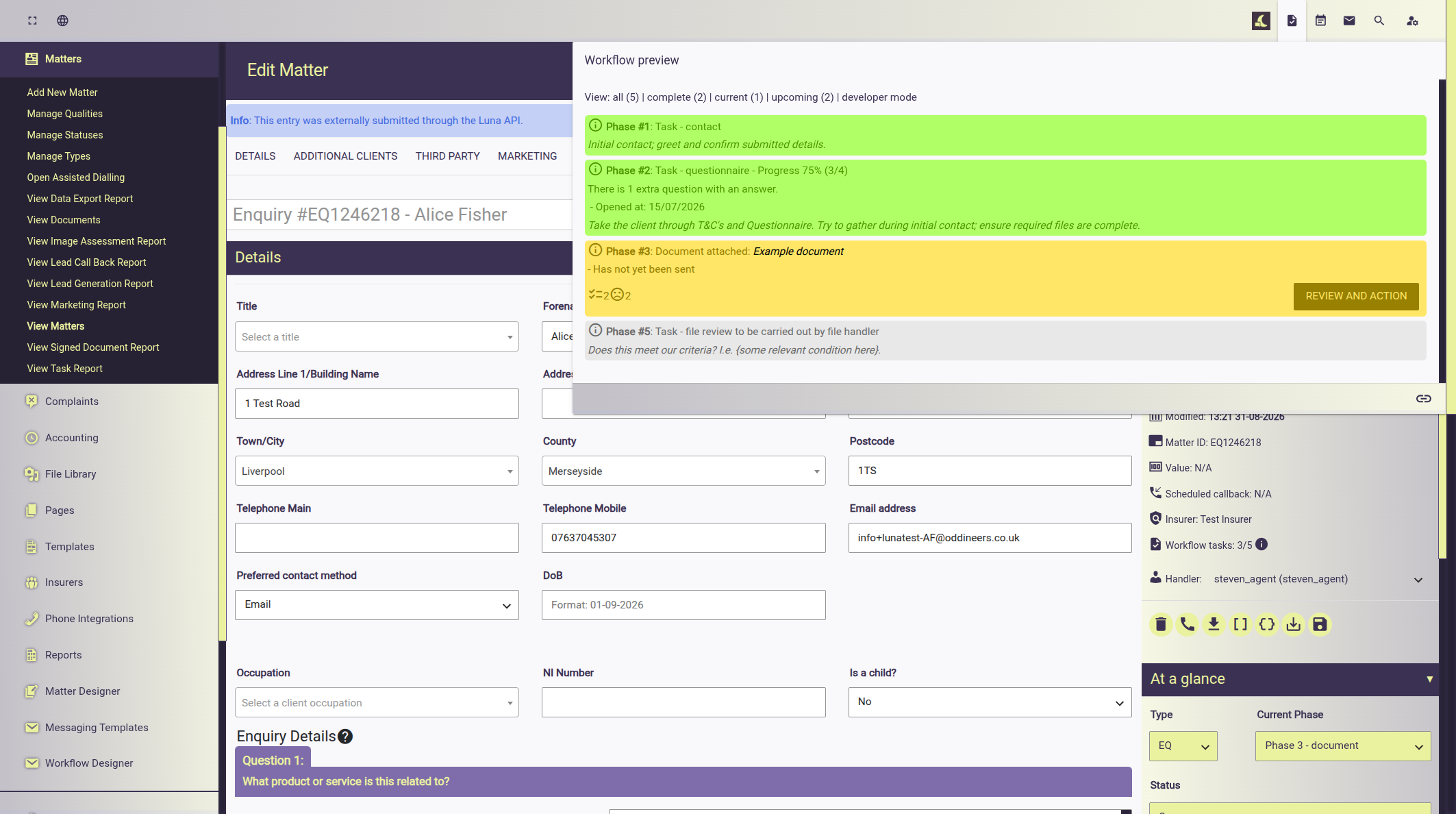
The Workflow Designer provides designers with the ability to setup detailed tasks that should be carried out on the file.
Some "sub-tasks" are interactive and check data saved against a file. For example the sub-task "Questionnaire" reviews the files Enquiry Questionnaire to determine if required questions have been completed and provides a count for each.
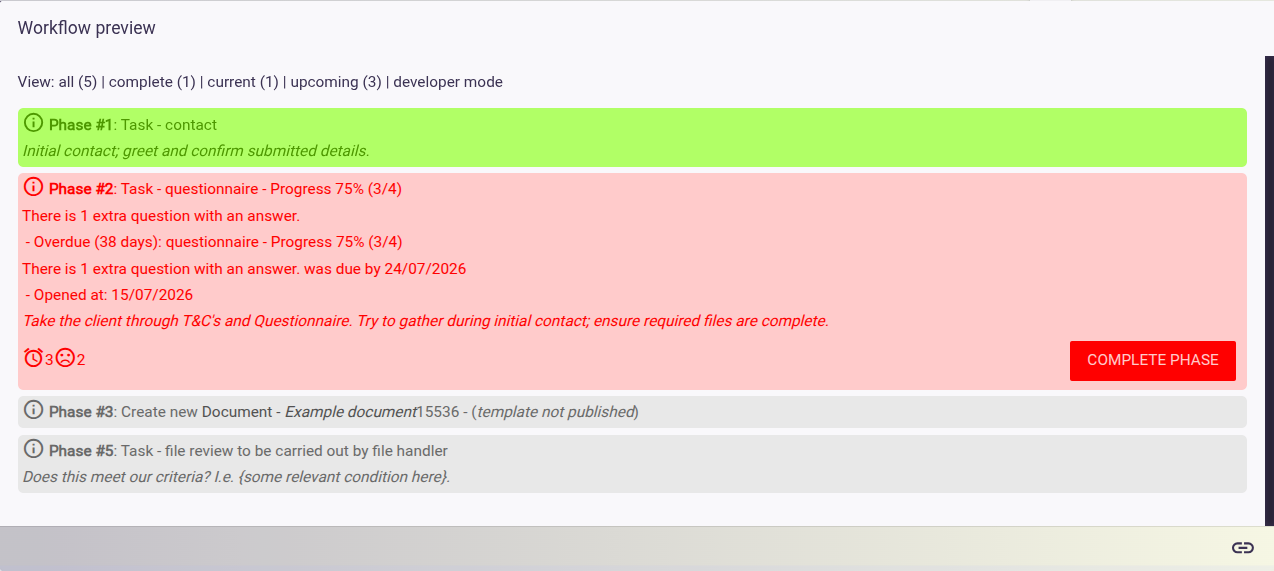
Phases are coloured coded to indicate both progress and whether it is overdue.
- Green represents tasks that are complete.
- Yellow represents current pending tasks.
- Red represents tasks that are overdue.
- Grey indicates upcoming tasks.
In the screenshot below this example demonstrates a tasks that is overdue:
Task Reports
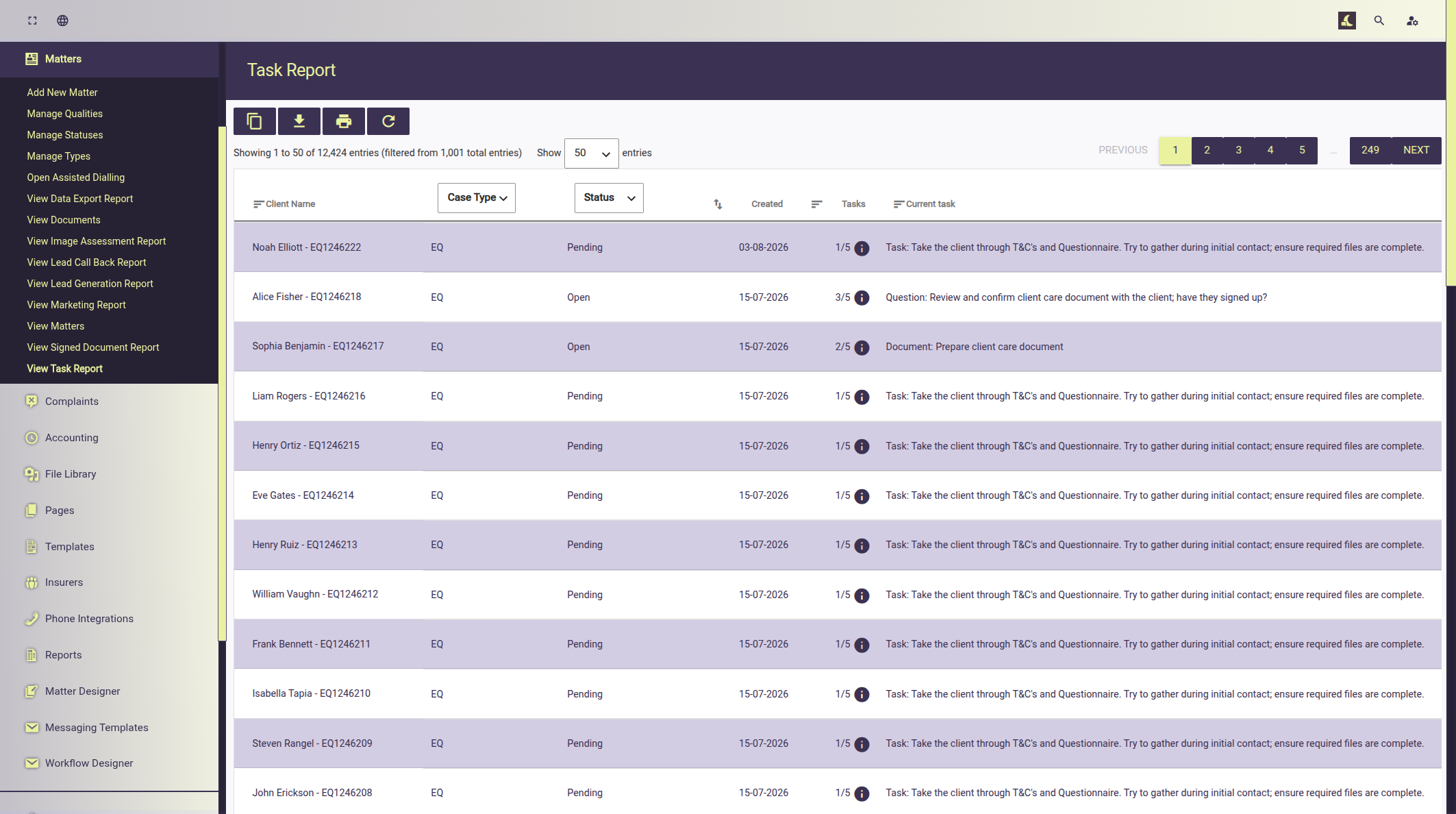
Luna provides several reports that can be used to review file and task progress. Managers and team leaders can use this report to review file progression in their departing. The following example demonstrates a report showing tasks progress and current task details.
Workflow Designer
The Workflow Designer allows designers to layout complex workflows and requirements against each case type. Review the "Workflow Designer" documentation for details on how to use it.