Setup Business Branch
The first task admins should perform is setting up the business information; Luna supports defining one or more branches.
At least one branch in required; the business information is used in areas such as document generation.
Navigate to: Accounting > View Branches > Add new Branch to get started.
Information you provide here is used throughout the system; for document templates these details become template tags.
Business details
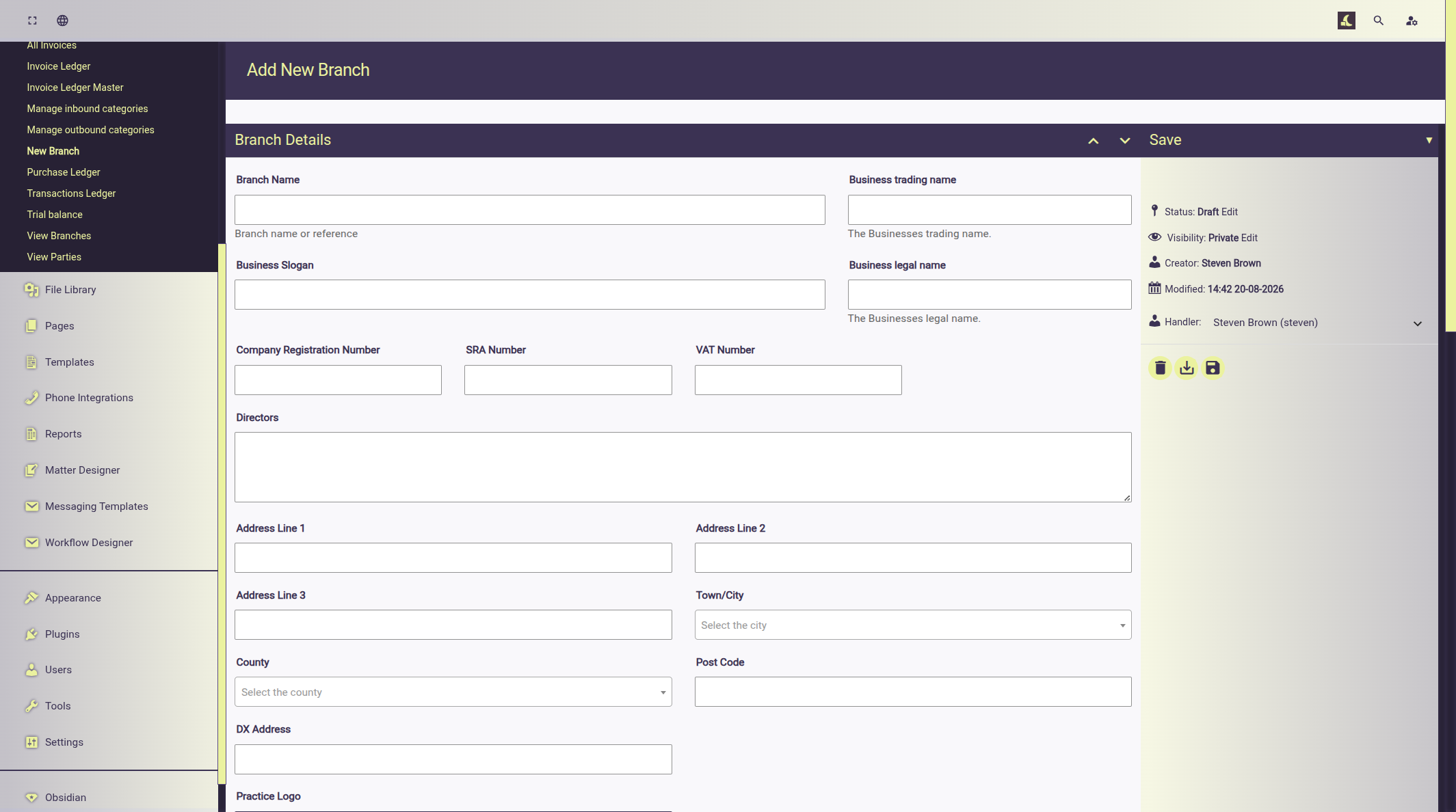
- Branch Name
- Branch name or reference
- Business trading name
- The Businesses trading name.
- Business Slogan
- Business legal name
- The Businesses legal name.
- Company Registration Number
- SRA Number
- VAT Number
- Directors
- Address Line 1
- Address Line 2
- Address Line 3
- Town/City
- County
- Post Code
- DX Address
- Practice Logo
- Additional notes
- Telephone number list: one or more entries can be provided each entry has the following fields:
- Type (at least one entry should be set to primary)
- Label
- Number
- Email contact list: one or more entries can be provided each entry has the following fields:
- Type (at least one entry should be set to primary)
- Label
- Branch bank account list: one or more entries can be provided each entry has the following fields:
- Account Name
- Account Number
- Account Sort Code
Setting the default branch
Luna allows you to set a branch as the default for the site. As the default the branch business details are used in areas such as document generation.
Signatories
Signatories are used in document templates to sign off documents. Use the option to select a registered user.
- Authorised signatory (general): the main signatory for documents created and sent by the system.
- Complaints signatory (letters, emails)
- Data Protection signatory (letters, emails)
- Supervisor signatory (letters, emails)
- Template Document Approver: used to approve template document before general use.